

Approve New Subscribers
Overview & When to Use
What this feature does
When a new customer signs up for a subscription account, they are automatically placed into a NEW status. Customers in this status do not yet count toward FOC numbers, initial orders, or check-in reserves until they are reviewed and approved by a store admin.
This ensures that only verified and approved customers are included in your subscription data and order calculations.
When to use it
Whenever a new subscriber registers through your store’s subscription system.
If you want to decline a duplicate or invalid signup.
Before finalizing FOC or initial orders to ensure all valid subscribers are counted.
How to Use Approve New Subscribers
Step-by-step
Go to Customers > All Customers in the Manage Comics menu.
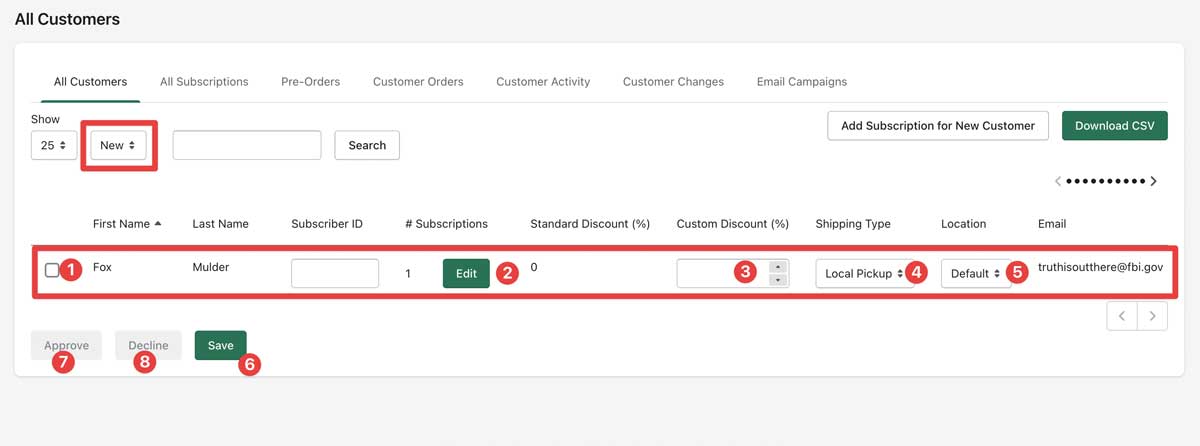
From the dropdown filter, select NEW. If you have new, unprocessed customers, this status will be selected by default.
Review the list of new customers. You can see their name, email, number of subscriptions, and any details they provided.
Adjust anything about the customer including their discount (3), shipping type (4) or even location (5), and click Save (6)
Select the customer(s) you want to process (1).
Click Approve (7) to make them an active subscriber, or Decline (8) if the signup is not valid.
What you should see
Approved customers are moved out of the NEW list and become part of your store’s subscriptions.
Once approved, they count toward FOC and initial order numbers, as well as product check-ins.
Declined customers are removed and will not appear in your subscription counts.
Screenshot

Tips
Process new subscribers regularly so your FOC and order numbers stay accurate.
If a customer looks like a duplicate, check their email address before declining to avoid removing an active subscriber by mistake.
You can edit customer details before approving if you need to correct typos or add missing info.
Troubleshooting
No NEW customers showing: If there are no unprocessed customers, the page will default to Subscribed.
Customer doesn’t appear after approval: Make sure you clicked Approve and then Save if you edited their details.